How Pure EMDR works
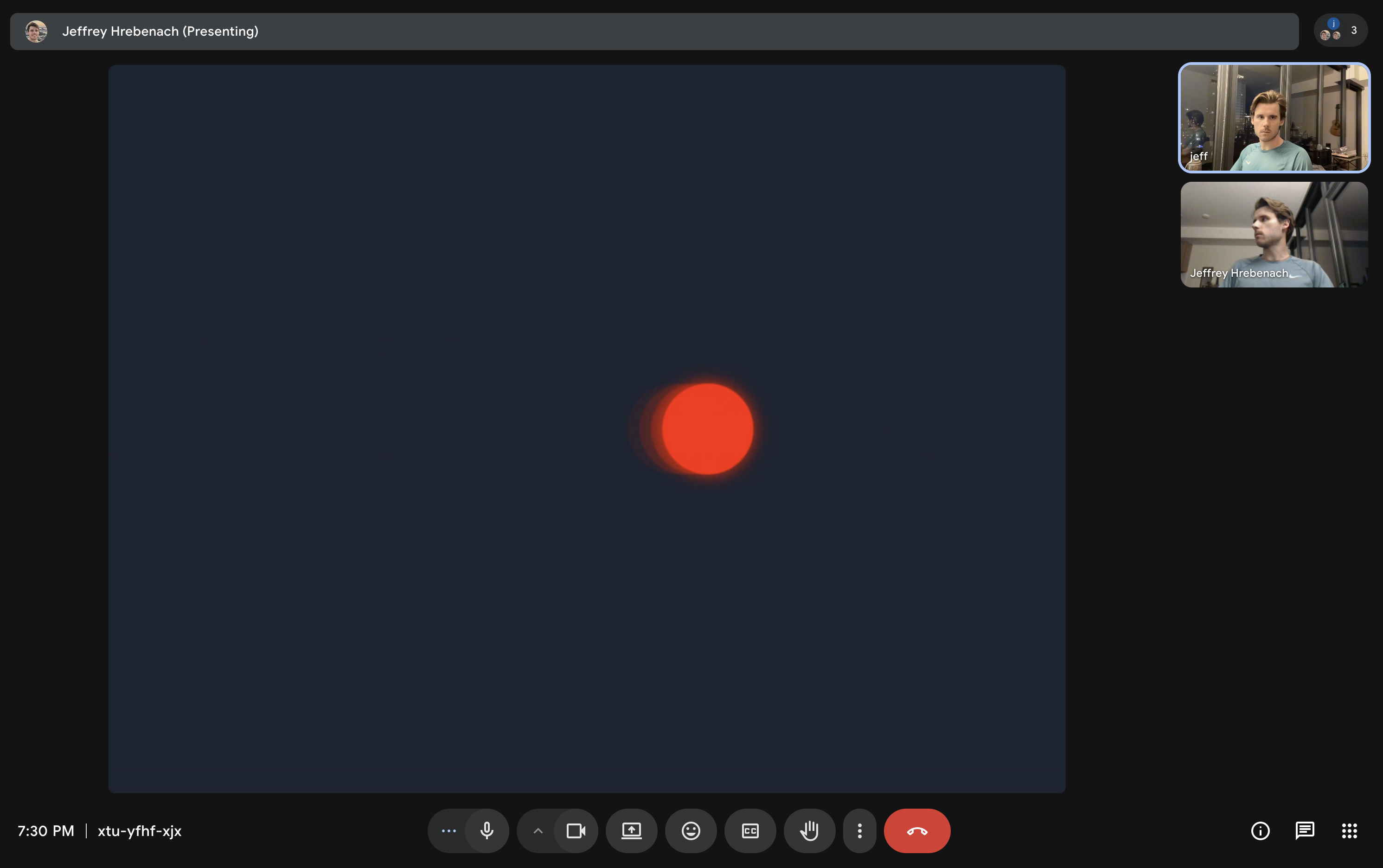
Pure EMDR lets you guide bilateral stimulation in the telehealth call you already use. Your client follows the ball without switching tabs, and you can keep their face in view throughout the set.
Only you install the extension. You share the EMDR Board through the call and use your private remote to change the ball’s speed or stop it for a check-in.
Open your remote
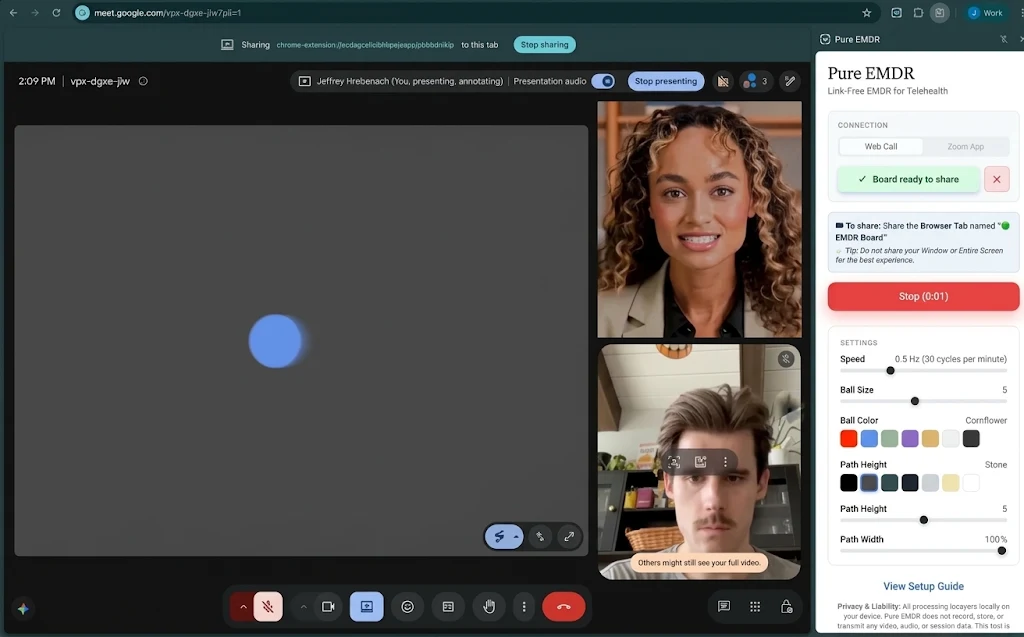
Before your first call, install Pure EMDR on your computer and pin it from your browser’s Extensions menu. Once you and your client are in the call, click the Pure EMDR eye icon in your browser toolbar to open the remote.
Share the board through your call
Choose the steps for the app you use to see your client. Sharing just the board keeps your remote and other open tabs private.
Browser call
For example, Google Meet or SimplePractice in Chrome or Edge.
- In the remote, select Web Call, then Open EMDR Tab.
- In your call’s screen-sharing menu, choose the browser tab named EMDR Board.
- Keep the board tab open in the same browser window. You can stay on the call tab with your client.
Zoom desktop app
Open the extension in Chrome or Edge alongside Zoom.
- In the remote, select Zoom App. Choose Pop Out Remote to place the controls beside Zoom, then Open EMDR Window.
- In Zoom, click Share, select the EMDR Board application window, and enable video optimization.
- Start sharing. Keep the board window small and visible in the foreground for smooth movement.
Start and stop the ball
Ask your client if they can see the board. On your remote, set the ball’s speed and size, then click Start Pure EMDR. Your client sees the ball move in the shared part of the call.
Click Stop at the end of a set. You can talk with the board still shared, adjust the settings for the next set, or end the screen share to return to the regular call view.